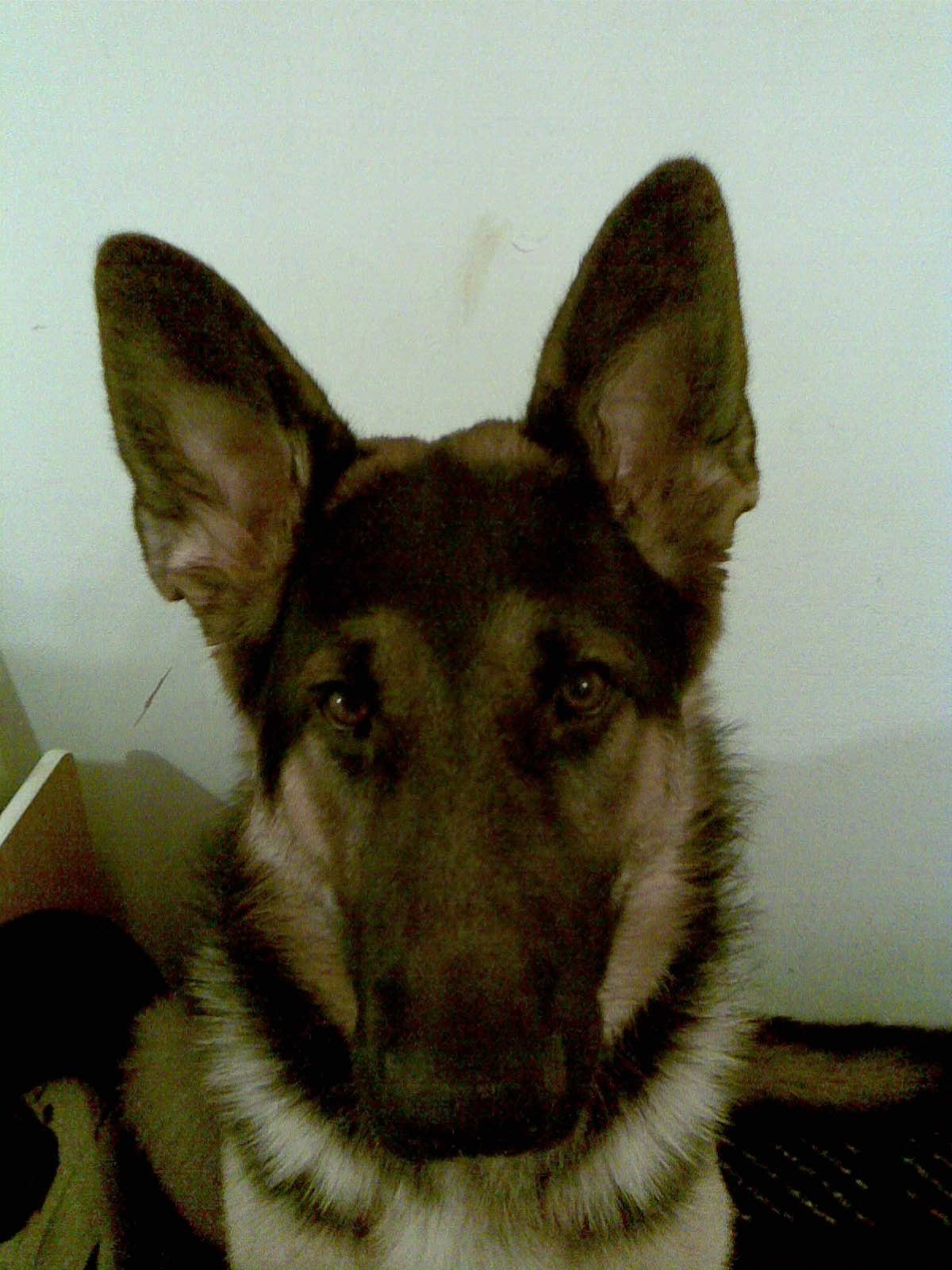
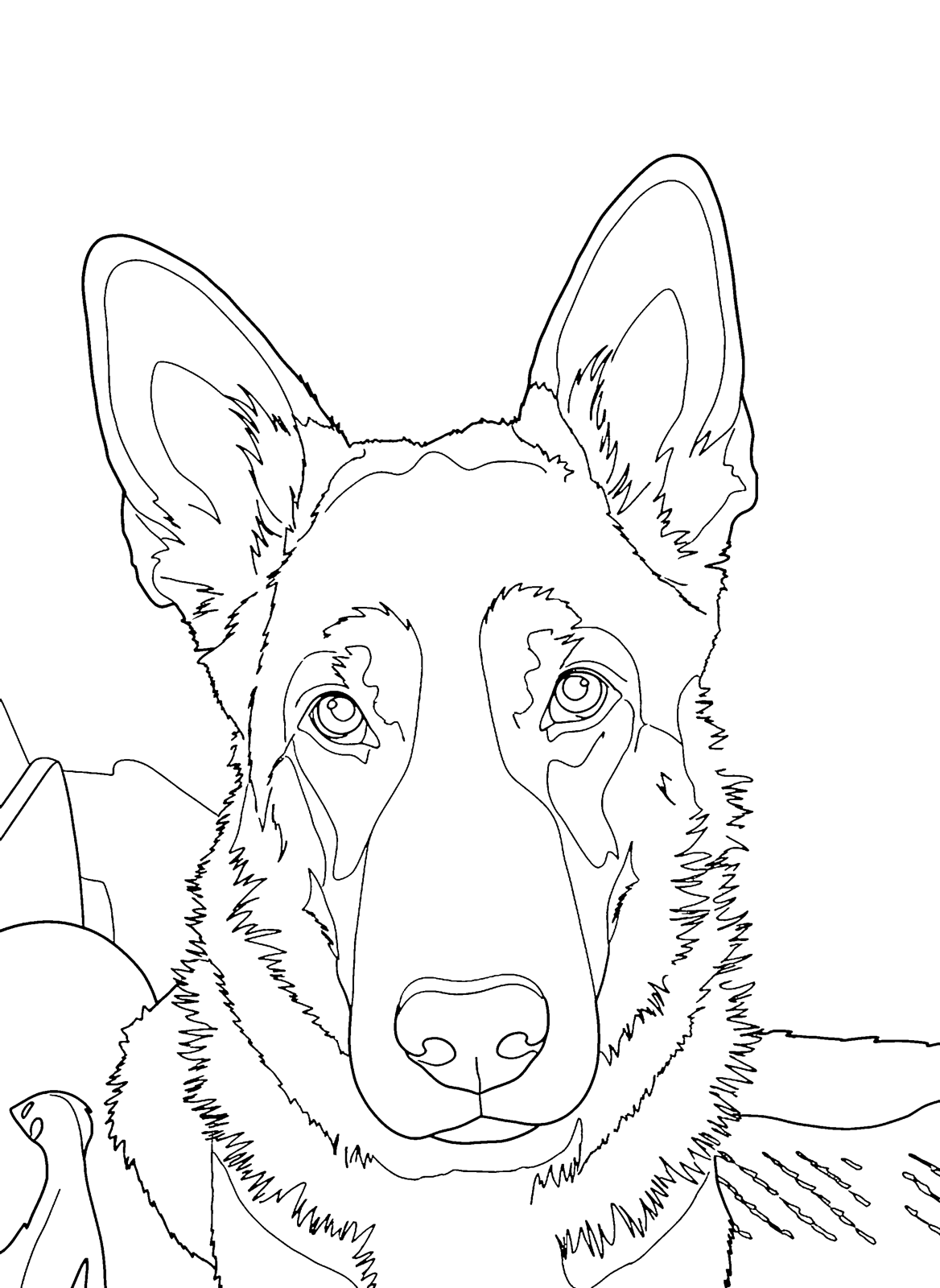
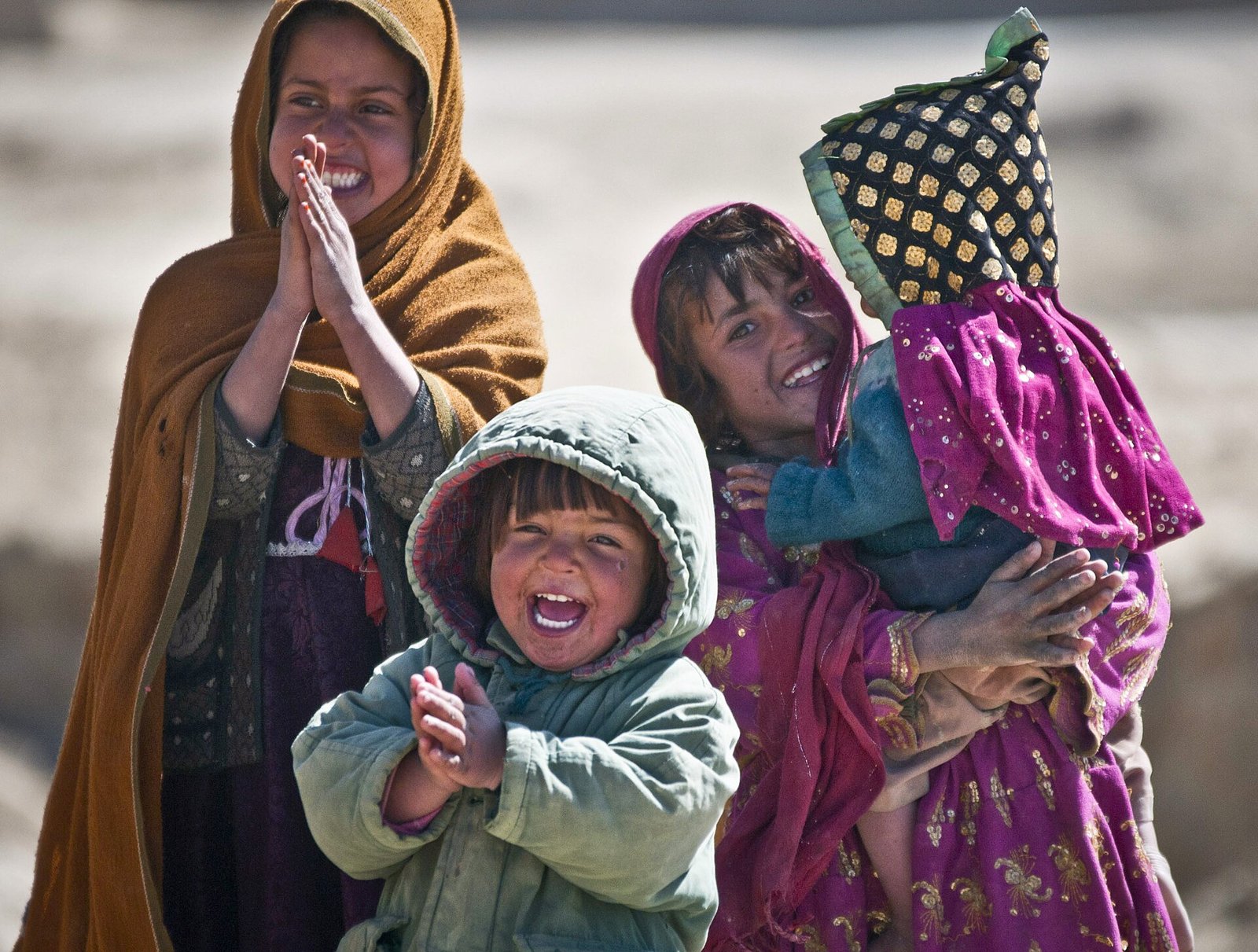
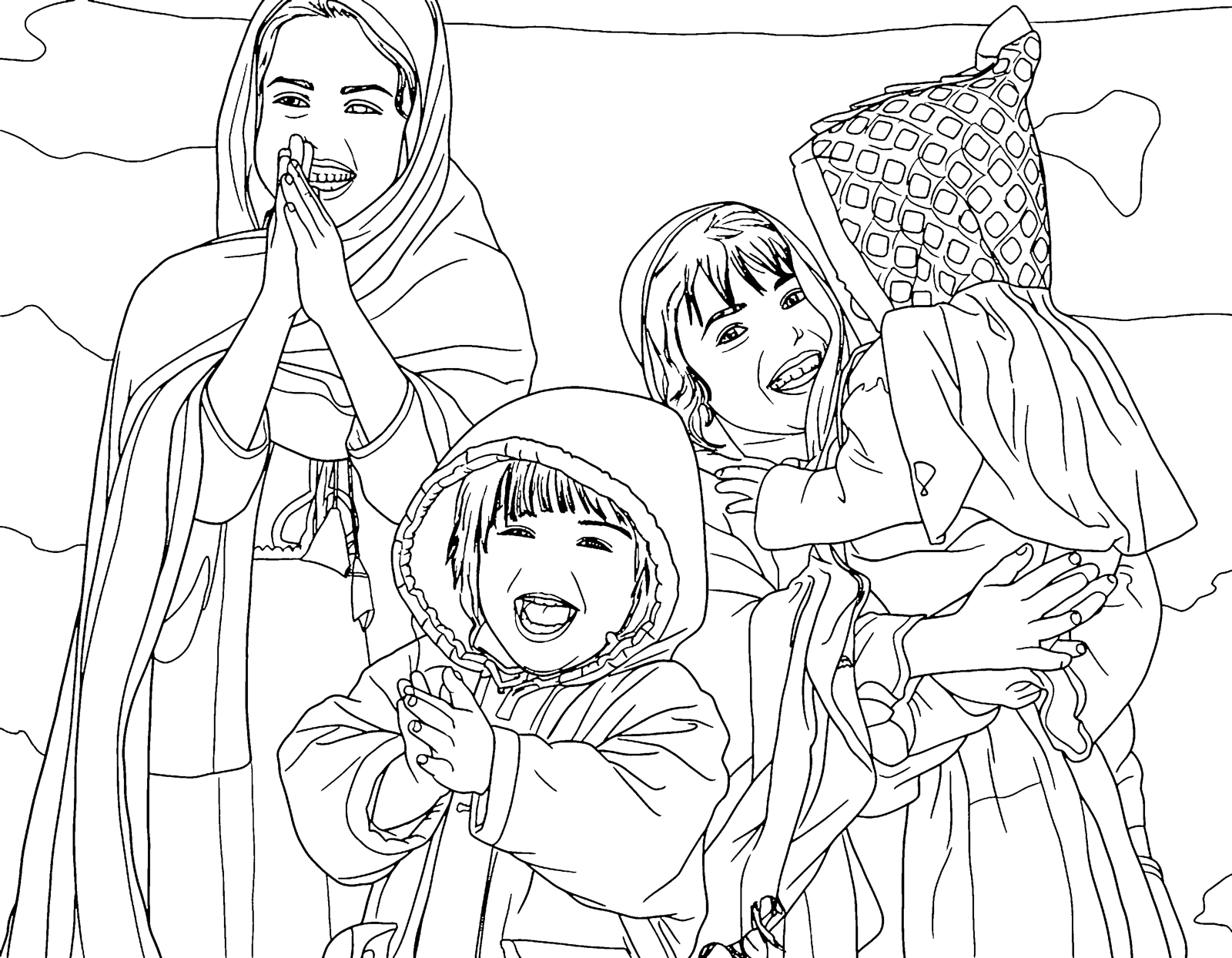
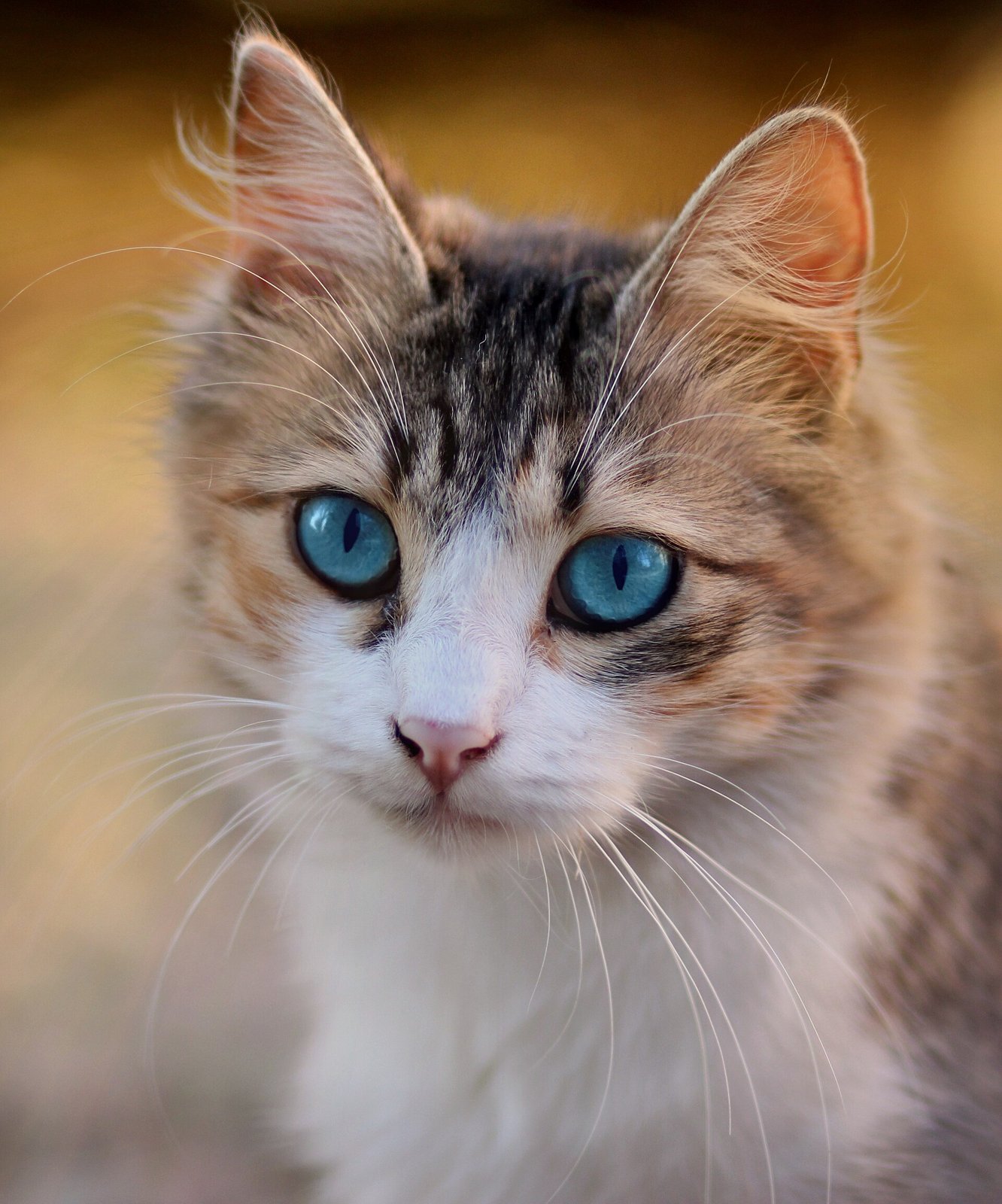
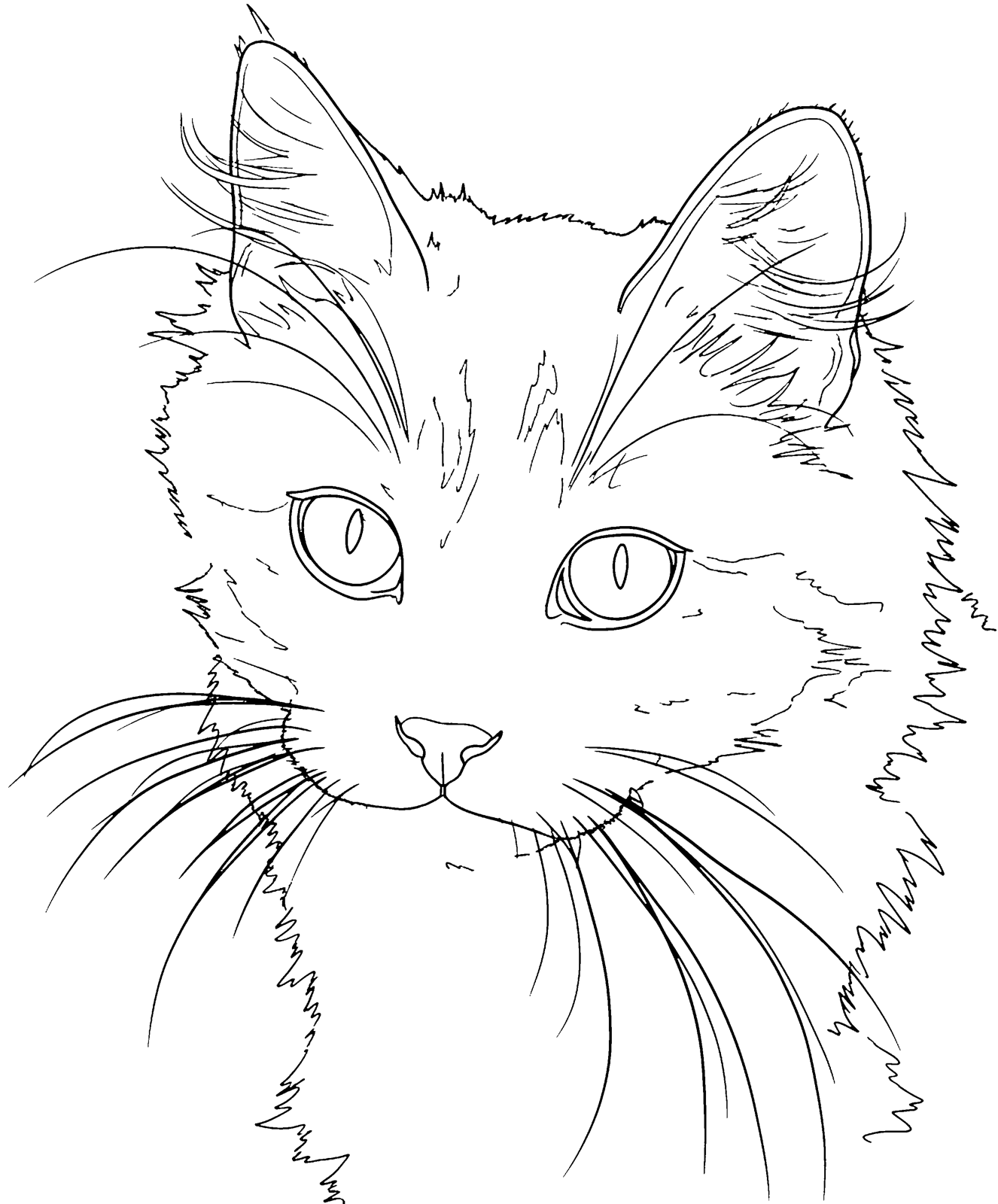
Coloriki turns a photo into a coloring page: clean black outlines on white paper, traced from your own picture so the people and pets in it still look like themselves. Upload a photo from your phone or computer, choose a style, and in about fifteen seconds you have a page you can print on A4 or US Letter, color online with a tap, or add to a coloring book. Your first previews are free and you do not need an account.
People call it many things: a photo to coloring page converter, a picture to coloring page maker, an image to coloring page generator, or simply a way to turn a picture into something the kids can color. They all mean the same thing, and this page covers all of it: how it works, which photos give the best results, how it compares with doing it by hand in a photo editor, and what it costs.
How to turn a photo into a coloring page
- 1 Upload your photoDrop a JPG, PNG or WebP picture, or choose one from your phone. iPhone photos are converted automatically in your browser. Photos up to 15 MB work.
- 2 Pick a styleClassic traces the photo faithfully for all ages. Little Hands uses very thick lines and big shapes for ages 2 to 5. Detailed keeps hair and textures for older kids and adults. Creative styles such as Cartoon, Kawaii, Anime, Stained Glass and Mandala Frame redraw the photo in a new look.
- 3 Get your page in secondsColoriki draws the outlines, removes grey shading and specks, and closes small gaps so crayons and the online paint bucket stay inside the lines.
- 4 Print it, color it or make a bookDownload the page in high resolution or as a PDF for A4 or US Letter, color it online on any device, or put several pages together into a coloring book with a cover and your own title.
Which photos make the best coloring pages
The photo you start with matters more than any setting. The best pages come from sharp, well-lit photos where the subject fills most of the frame. Close-ups of one to three people or animals work better than wide group shots, because faces keep their details when they are large.
Busy backgrounds become busy pages. A plain wall, the sky, a lawn or a beach make the person or pet stand out; under More options you can also ask Coloriki to simplify or remove the background.
- Good light: daylight from the front or the side
- Close up: the person or pet fills at least half of the photo
- Sharp: no motion blur, eyes in focus
- Simple background, or choose "Simplify" or "Remove" for the background
- Faces toward the camera: eyes and smiles make the page come alive
Faithful tracing or a creative redraw
There are two kinds of styles, and it helps to know the difference. Classic, Little Hands and Detailed trace your photo: the pose, the hair, the clothes and the shape of each face stay as they are, so grandma looks like grandma. These are the styles to choose for family pages, pet portraits and gifts.
Cartoon, Kawaii, Anime, Stained Glass and Mandala Frame redraw your photo in a new look. The people and pets stay recognisable in hair, clothes and pose, but the drawing becomes a picture-book cartoon, a cute chibi, a manga page, a stained-glass window or a portrait inside a mandala border.
Picture, image or photo: it all works
You can turn almost any image into a coloring page, not only camera photos. Screenshots, scans of old prints, children's drawings, photos of toys, houses and cars all work. A scanned family photo from decades ago makes a lovely page for grandparents.
Logos and pictures that belong to someone else are a different matter: use photos you took yourself or have permission to use. Pages are for personal use; selling them needs the Pro plan and photos you own.
Doing it by hand in Canva, Photoshop or Procreate
You can make a coloring page from a photo in a photo editor: turn the image black and white, apply an edge or "find edges" filter, raise the contrast, then clean up the specks by hand. It works, but the result usually has grey shading, broken lines and noise that a child cannot color neatly, and it takes practice and time for each photo.
Coloriki does those steps for you and adds the parts that are hard to do by hand: pure black lines, closed shapes, print resolution and a choice of line thickness for different ages.
Private by design
Your photos are used only to make your pages. They are never shown publicly, never used to train AI, and the original photos are deleted after 30 days. Pages made without an account are visible only in your own browser.
Coloriki, a photo editor or a chatbot
| Coloriki | Photo editor (Canva, Photoshop) | Chatbot (ChatGPT, Gemini) | |
|---|---|---|---|
| How the page is made | Traced from your photo | Filters you set by hand | Redrawn from a description of your photo |
| Faces and pets | Keep their real outline | Kept, but noisy lines | Often look like someone else |
| Clean, closed lines | Yes, cleaned automatically | Manual clean-up | Often grey shading |
| Print size | 3300 px, A4 and US Letter PDF | Depends on your photo | About 1024 px, blurry when printed |
| Time per page | About 15 seconds | 10 to 30 minutes | About a minute |
| Color online | Yes, tap to fill | No | No |
| Coloring book | Yes, with cover, dedication, printed copies | No | No |
Tips for the best result
- For toddlers, choose Little Hands: the thick lines and big shapes are easy to stay inside.
- If the page looks too busy, try again with "Simplify background" or a closer crop of the photo.
- For pets with long or fluffy fur, Classic gives cleaner outlines than Detailed.
- Make two styles of the same photo, Classic and Cartoon for example, and let the child pick.
- Print on thicker paper (100 to 120 gsm) if you use markers or paint.